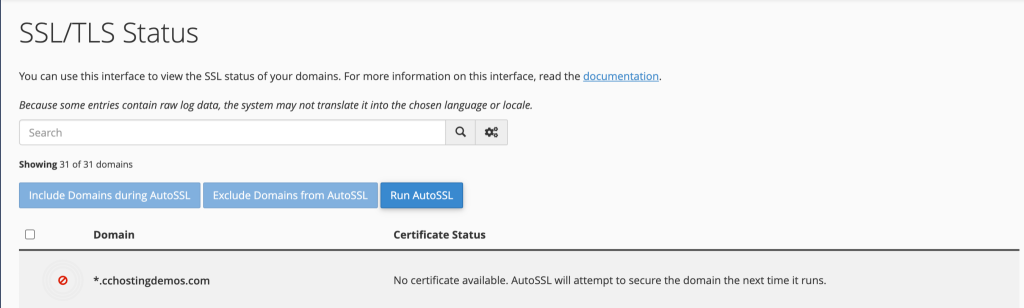
In this tutorial, you will learn how to install Let’s Encrypt SSL in Cpanel for any of your domains in a few clicks.
What is Let’s Encrypt?
Let’s Encrypt is a free, automated, and open certificate authority brought to you by the non-profit Internet Security Research Group (ISRG).
Let’s Encrypt SSL Installation Requirements
There are a few requirements that your domain should meet so you can install a Let’s Encrypt SSL successfully on it: And here you can force install ssl on your domain
1. The domain and its www subdomain should be pointed to your cPanel account’s IP address. Otherwise, the certificate cannot be verified and installed on your domain.
2. By default, when you initiate the installation of a Let’s Encrypt SSL on your primary domain, cPanel will include your parked domains as part of the SSL installation. The SSL installation will fail if you have a parked domain that is not pointed to your cPanel’s IP address. You should point these domains to your cPanel account or temporarily unpark them until the installation completes.
How to install Let’s Encrypt SSL In Cpanel on your domain
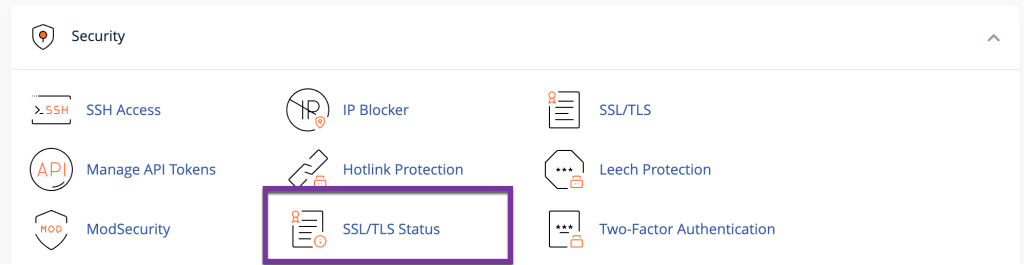
1) Once you are logged in to cPanel, scroll down the page to the ‘SECURITY’ area. Then click on SSL/TLS Status icon.
2) The next step is to issue a new SSL certificate for the desired domain name. Select one or multiple domains/subdomains, then click ‘Run AutoSSL‘. It will take a few minutes for the SSL Certificate to be issued and installed.
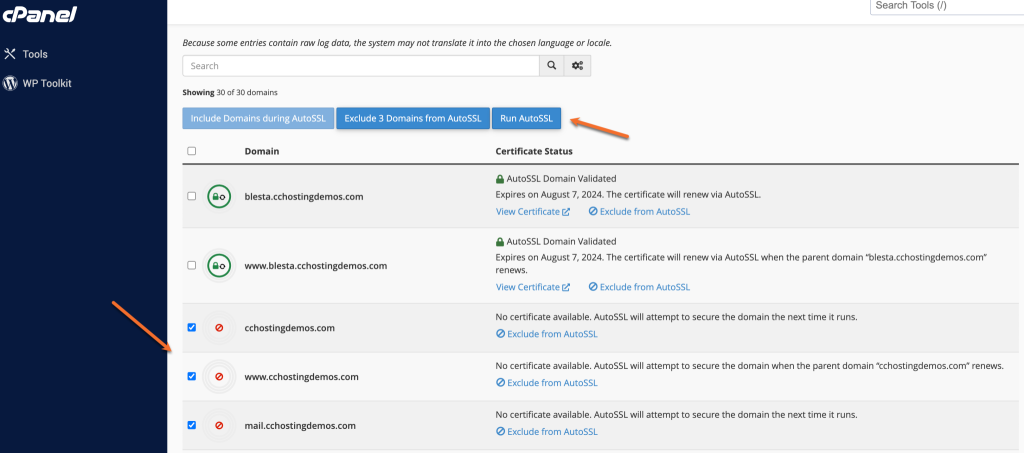
If you see a green padlock next to the domain, it indicates that a valid SSL Certificate is already in place, preventing the issuance of another one.
If the certificate request involves multiple subdomains, it will automatically include a wildcard (*.example.tld).
3) Once you have installed the SSL Certificate, you should redirect visitors to the secure version of your website ( https:// ). Learn how to Redirect HTTP Requests to HTTPS
How to install a wildcard Let’s Encrypt SSL on your domain
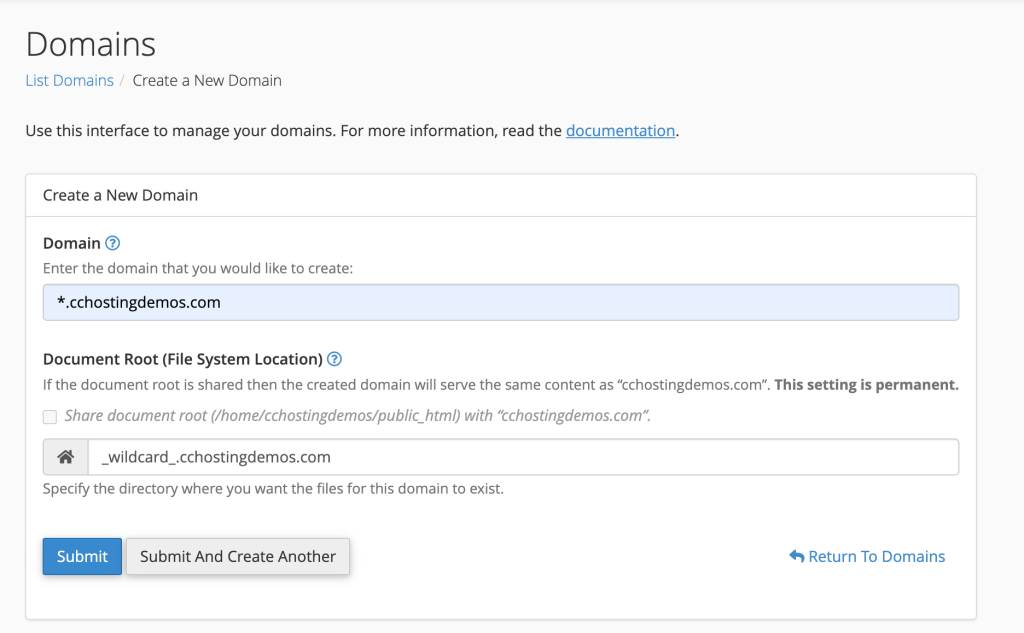
1) First you have to create a wildcard subdomain by going into cPanel -> Domains.
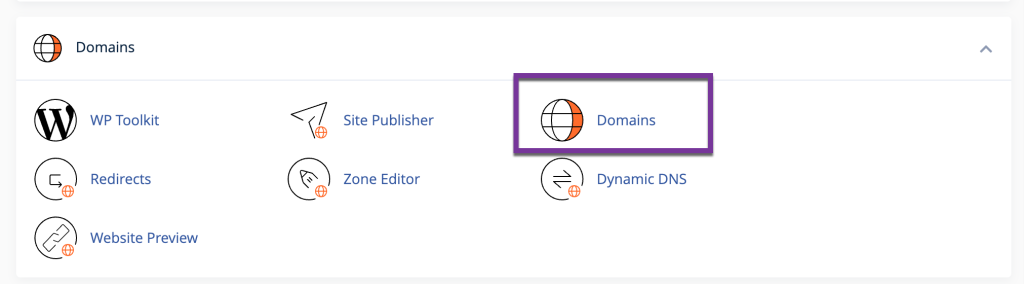
2) Create the subdomain by entering *.example.tld (replace example.tld with your domain name) in the domain box and clicking ‘Submit’.
3) Return to the main cPanel dashboard and scroll down to the ‘SECURITY‘ section. Click on the SSL/TLS Status icon. Here, you will see the wildcard subdomain that was created. If the WildCard SSL Certificate was not previously generated and installed by cPanel, it will automatically be done once AutoSSL runs on the entire server, which occurs every 3 hours. Currently, there is no way to manually trigger the WildCard SSL generation.